
Your Growth Profile
Your growth profile is your Home page. It's where you see your career path, how your skills compare, and what to do next. What you see depends on your plan, your role and the features your organisation uses.
What's on the page
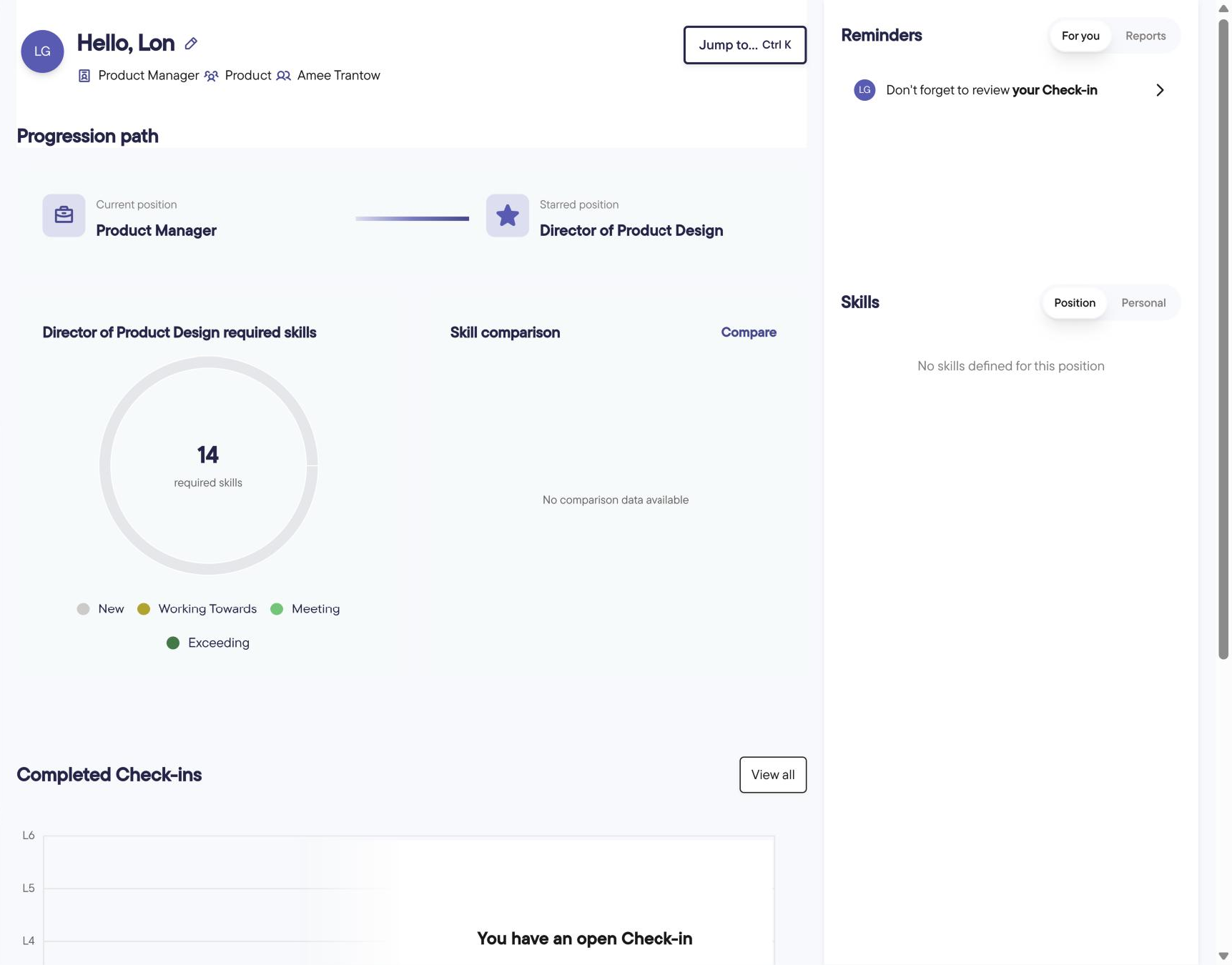
Profile header: your position, team and manager. Use Jump to... to search and move around quickly.
Progression path: your current position and your starred position. See Starred position and skills.
[Position] required skills: how many skills your starred position needs, and how each compares with the level your current position requires. Skills your current position doesn't need show as New.
Skill comparison: you, based on your most recent completed check-in, overlaid with your starred position. Click Compare to open the Compare page.
Completed Check-ins: your results over time. Click View all to see every check-in.
Latest activity: your three most recent updates. Click Add to log something new.
Actions: your Actions, with Add to create a new one.
The side panel
Reminders: open Actions and check-ins waiting for you. The Reports tab lists your direct reports.
Skills: the Position tab lists your position's skills with the required level and your latest check-in result. Click a skill to see activity tagged with it. The Personal tab shows your personal skills.
On smaller screens, open the side panel with the panel icon at the top right.
Starred position and skills
Starring helps you focus. Star the position you're working towards and up to three skills you want to build. Your manager can then shape development conversations around your goals.
Star a position
If Careerminds suggests a position in your Progression path, click the star to accept it, or click the pencil and choose I'll choose.
If you have no starred position, click the pencil and choose Choose a position.
On the Compare page, click the star next to the position on the right. This replaces your current starred position.
Star a skill
In the side panel, find Skills and open the Position tab.
Click the star next to a skill. Click it again to unstar it.
You can also star skills on the Compare page. On the Personal tab you can star your personal skills.
How starred items are used
The [Position] required skills card compares your starred position's skills with the levels your current position requires.
The Skill comparison card overlays you, based on your most recent completed check-in, with your starred position. If you haven't completed a check-in, it uses your current position's requirements.
On the Compare page, filter by Starred to see only your starred skills.
How many can I star?One position and up to three position skills.
Who can see them?You, your reporting line and your organisation's admins.
Viewing someone else's profile
Managers and admins can see a person's progression path, skill cards and check-ins. Managers also see their Actions. Colleagues may see a person's position and activity shared with them, but not their path or Actions.
To add something for someone, open their profile and click Add in Latest activity. You can add a Win or Feedback. Managers and admins can also add an Action.
For personalised career guidance, try the AI Coach.