
Insights & Skill Gaps
Insights help admins understand skills and engagement across the organisation. Use them to spot skill gaps, plan learning and development, and see how actively people are using Careerminds.
To open Insights, click Insights in the left-hand menu, under your organisation's name. There are two tabs: Skill Gaps and Engagement.
Skill Gaps
Skill gap analysis shows where your organisation is strong and where it needs development, based on each person's most recent completed check-in.
Column | What it shows |
|---|---|
People using | The number of people in positions that require the skill. |
Check-in coverage | The percentage of those people whose most recent completed check-in includes the skill. |
Required Level | The average required level in people's completed check-ins. |
Assessed Level | The average final level people received, based on their most recent check-in. |
Skill Gap | Assessed Level minus Required Level. A negative number is room for improvement. A positive number is a strength. |
Example: six people need the skill Coding, and five of them have checked in on it. Check-in coverage is 5 ÷ 6 = 83%. In those check-ins, the average required level was 2.4 and the average assessed level was 2. The Skill Gap is 2 − 2.4 = −0.4, so Coding is a development area.
Digging deeper
Use the team filter to focus on one or more teams.
Click the number of people on a row to see how they're rated (for example Working Towards, Meeting, Exceeding) and each person's individual gap.
Download the data as a CSV. The download also includes Skill Gap (all positions), which compares against everyone's current required level, and a Weighted Skill Gap (all positions), which multiplies that gap by the number of people who need the skill.
Tip
Low check-in coverage makes results less reliable. Encourage check-ins before you draw conclusions.
Engagement
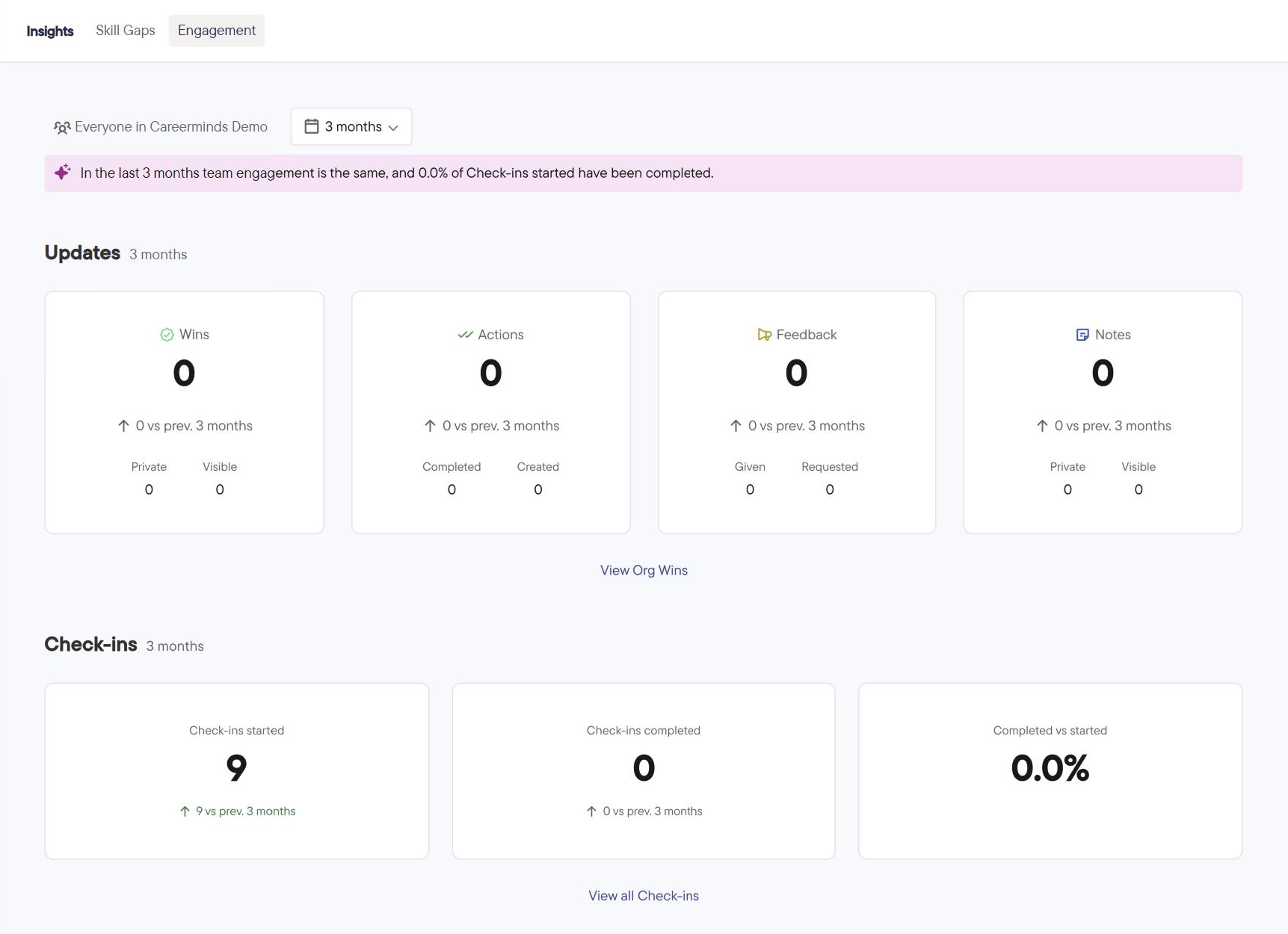
Shows how much activity people are logging (Wins, Feedback, Actions and Notes) and how many check-ins have been started and completed. Choose a time period: 30 days, 3 months, 12 months or All time. Unless you choose All time, you'll also see a summary of how engagement has changed.
Other places to find insight
Position Skills in the left-hand menu shows how many teams, positions and people use each skill.
Check-ins lets you review completed check-ins and results. Managers see check-ins for their reporting line.
Who can view Insights?
Organisation admins only. Managers can see check-in results for people in their reporting line on the Check-ins page.
Which plans include Insights?
Business and Organisation plans.