
Positions
A position is a job or role within a team, such as "Senior Designer". Each position sits in a track at a seniority level, and lists the skills and skill levels it needs. Defining positions, whether they exist today or are planned, shows people what's expected of them and how they can progress.
You manage positions on a team's Positions tab, where they're laid out in rows (one per track) and columns (one per seniority level). Admins and team editors can make the changes below.
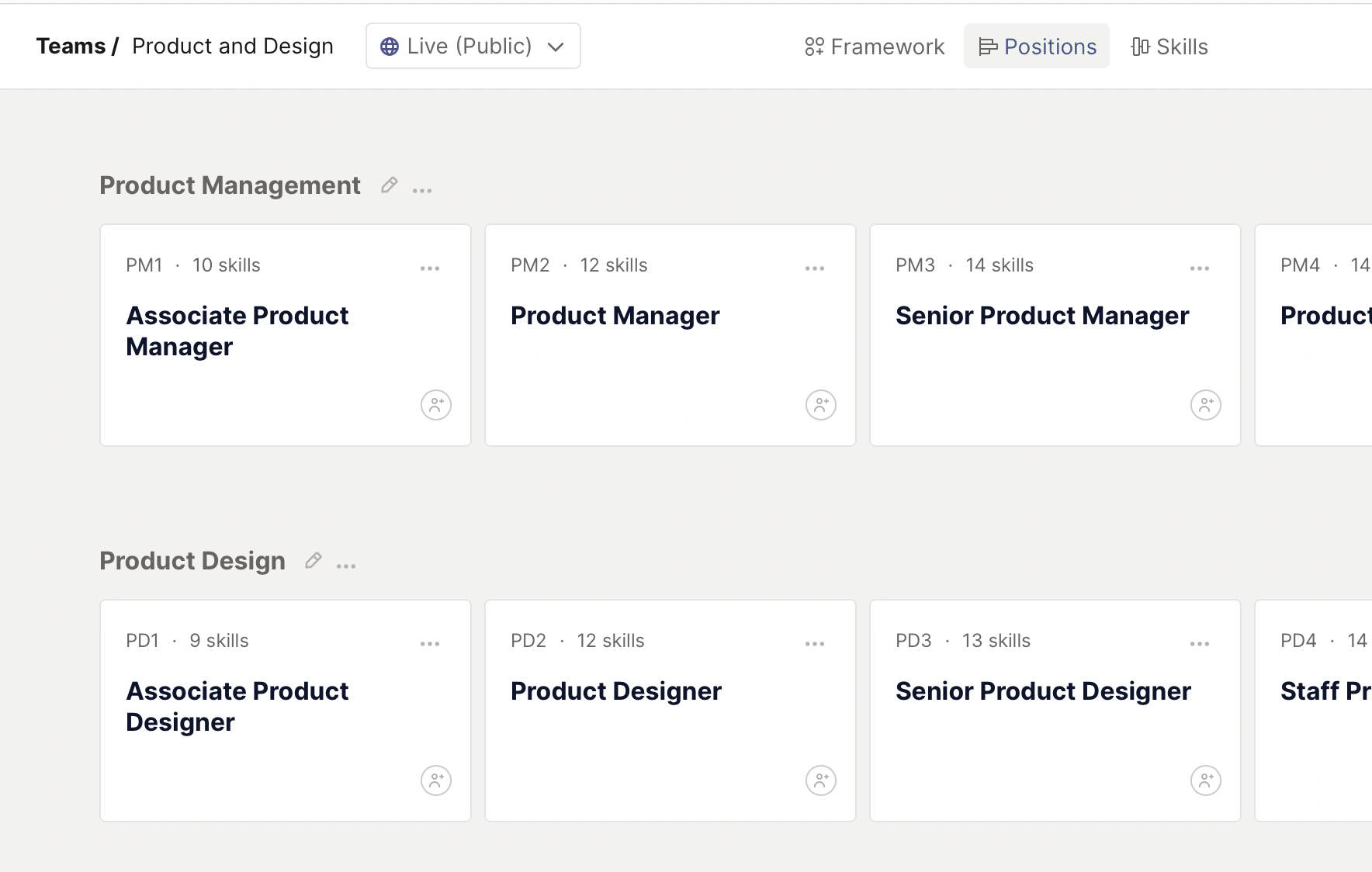
Add a position
In the left-hand menu, open Teams and choose the team.
Go to the Positions tab.
In the right track, click Add position in the column for the seniority level you want.
Type the position title and press Enter.
Click the new position to open it and fill in the details.
To start from an existing position instead, open its ... menu and choose Duplicate. You'll see "Position duplicated". The copy keeps the original's settings, so you only need to change what's different.
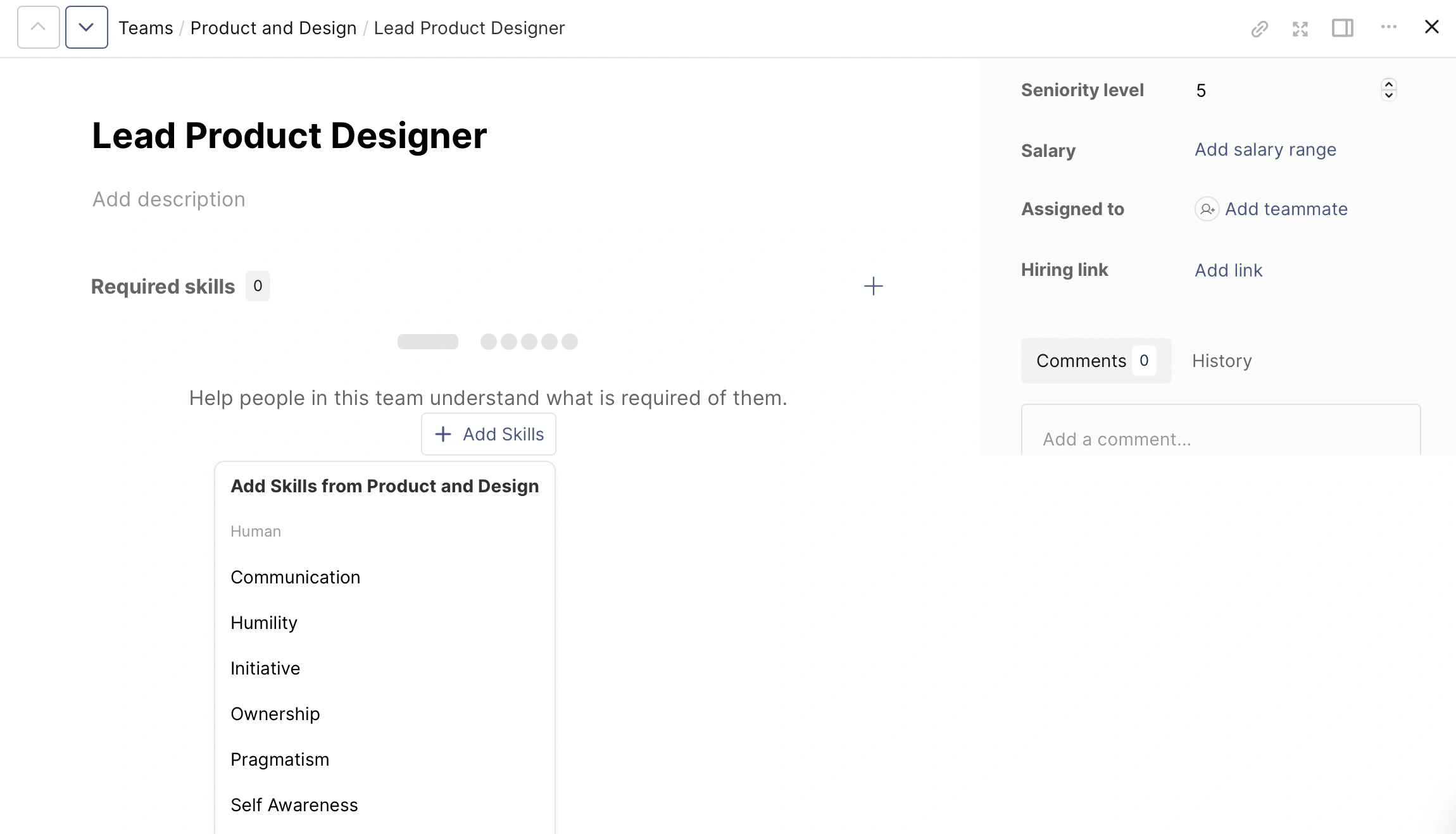
What you can set
Description: write your own, or use the sparkle button (Generate a description using our AI Assistant) and click Generate description.
Required skills: the skills and levels someone needs for this position. Click Add Skills to pick from the team's skills.
Label: override the default label if your organisation uses its own naming.
Seniority level: sets where the position sits in its track.
Salary: optional. Click Add salary range. For a fixed salary, leave the "To" field empty.
Assigned to: the people in this position.
Hiring link: a link to the job advert if you're recruiting.
Tip
On the Organisation plan (or Business with the multiple salary bands add-on), you can add several salaries with a location each, using Add another salary.
Non-admins only see salaries if an admin has turned on Show salaries in Preferences.
To set levels for many positions at once, use the team's Framework tab and click the cell where a skill meets a position.
Move a position
Within the same track: drag the position card to a different column. You can also open the position and change its Seniority level. A higher number places it further to the right.
To another track or team:
Open the position card's ... menu and choose Move to....
Choose a team, then choose a track.
Click Move Position.
All skills, comments and position history move with the position.
Delete a position
Open the position card's ... menu (or the ... menu at the top of the open position).
Choose Delete, then confirm.
Warning
Deleting a position removes it from Careerminds permanently. If you only want to reorganise, use Move to... instead.
Share or download a position
From the position's ... menu you can copy a link, or Download it as a CSV or PDF.
Work on it together
Editors can use the Comments and History tabs on the right of the position to discuss changes and see what's been edited. See Comments on positions and skills.