
Skill Categories
Skill categories group the skills in a team's framework by type. For example, a team might use three categories:
Craft: the technical skills for the job
Human: how people work with others
Leadership: how people guide and grow others
Grouping skills like this helps people see at a glance the different kinds of skills each position needs. You can create as many categories as you like and name them however suits your team (up to 50 characters). Each category can also have a short description. Skills that aren't in a category appear under Uncategorised.
You add categories from a team's Skills or Framework tab, and rename, move or delete them on the Skills tab. You need to be an admin or an editor of the team. If a category is locked, only admins can edit, move or delete it.
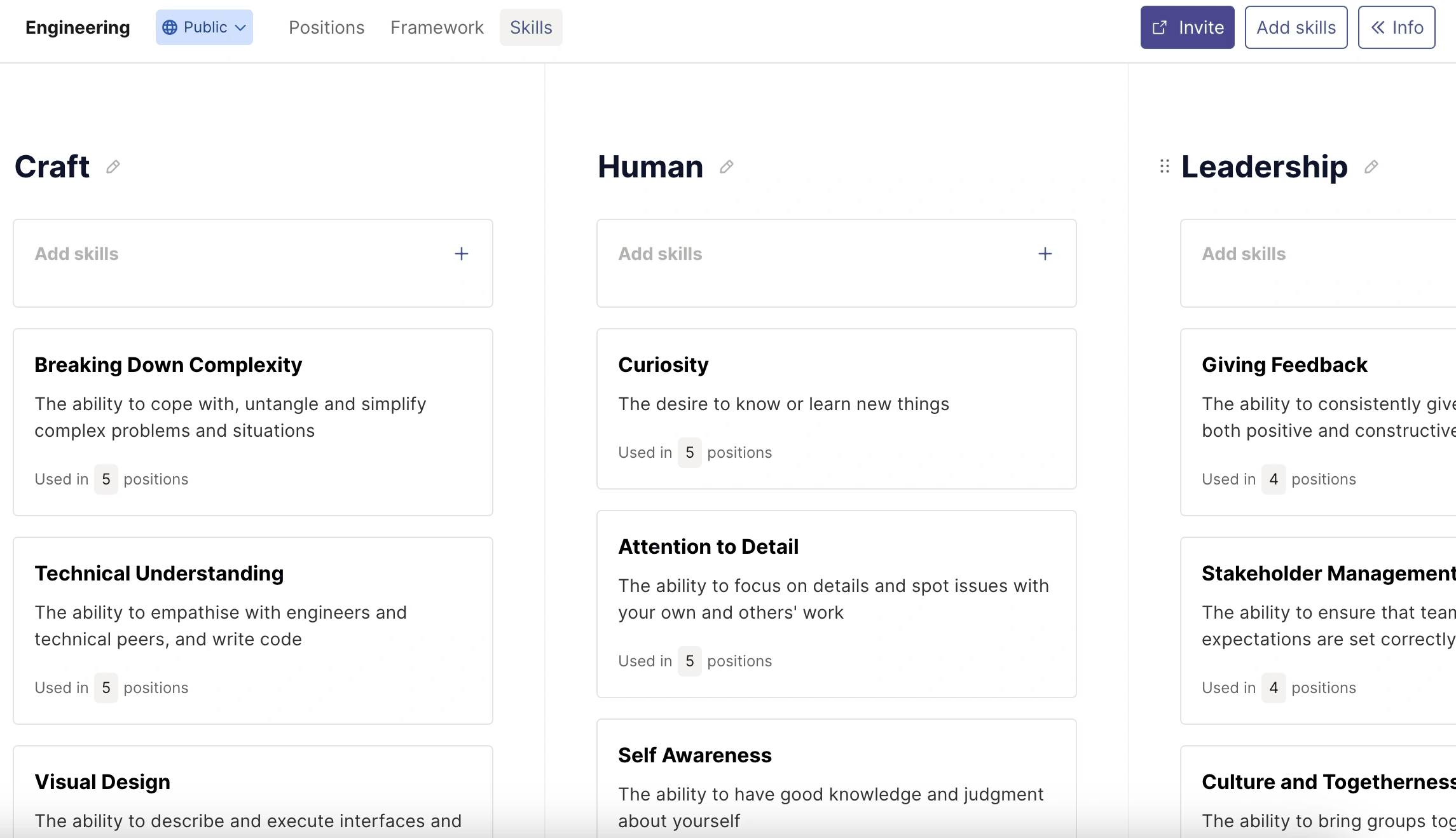
Add a category
Open the team and go to the Skills tab.
Click Add a category (after the last category). On the Framework tab, the button is called Add a skill category and sits below the skills.
Enter a Name and, if you like, an Optional Description.
Click Submit.
Rename a category
On the Skills tab, click the category name, edit the name or description, then click the tick to save.
Move a category
On the Skills tab, press and hold the drag handle at the top of the category column, then drag it to where you want it. The new order is used across the team's framework.
Delete a category
On the Skills tab, click the category name, then click the bin icon and confirm with Yes, delete category. The category's skills move to Uncategorised and stay in the team.
In the setup guide
If you delete a category during the setup guide, its skills are removed from the team too. They stay in your organisation's skill list, so you can add them back later.